Add your agent
Package your agent as a container image and register it as a candidate on your bench.
When you finish this page, your agent is a candidate on your bench, ready to run in a trial. The samples use the shell variables from Before you start.
Three ways an agent can join a bench
| Who runs it | How the bench reaches it | Choose it when | |
|---|---|---|---|
| Your image | Veris runs your container, one fresh copy and one fresh world per attempt. | Over http or WebSocket, inside the attempt. | You own the agent’s code. This page covers it. |
| Hosted endpoint | You run the agent and expose an endpoint. | The bench connects to your URL over http or WebSocket. | The agent can’t leave your infrastructure. |
| Managed harness | Veris runs a stock agent, such as Claude Code, Codex, GitHub Copilot or Grok. | Veris wires it up. | You want a baseline to compare your agent against. |
Hosted endpoint. You run the agent and expose it at a URL. The bench talks to it over http, WebSocket or voice WebSocket, with the same field mapping as Your image. For the agent to use the bench’s twins, Veris sets up a twin sandbox of the bench’s world; you point your agent at it and give the bench the sandbox’s id (Pinned twin sandbox in the console). Write to hello@veris.ai to set up the twin sandbox.
Managed harness. See the stock agents Veris can add to your bench in the Library , and write to hello@veris.ai to add one.
The rest of this page is about Your image.
Let your coding agent do it
Most of the work is wiring your agent to the bench, and your coding agent can do it for you with the add-your-agent skill. Install it:
Claude Code
/plugin marketplace add veris-ai/plugins
/plugin install bench@veris
Then, in your agent’s repository, run /bench:add-your-agent <bench id>.
Have these ready. The skill asks for any that are missing:
- your API key in
VERIS_API_KEY(see Before you start) and your bench’s id; - a registry Docker can push to, such as
ghcr.io/<you>; - the keys your agent needs, such as
OPENAI_API_KEY. They go in the bench, not in the image.
The skill adds a server file, a Dockerfile and bench/candidate.json beside
your agent, and leaves your agent’s own code as it is where it can. It builds
and pushes the image, registers the candidate, and runs a smoke trial. It is
done when every smoke attempt passes the checks in
step 8, and it ends with the candidate’s id and a
link to the trial.
Veris helps you add your first agent: write to hello@veris.ai.
Under the hood
The skill follows the steps below. Read them to see what changes in your repository, or to do each step yourself.
1. Answer over http or ws
Your container runs a server. The bench’s simulated user talks to it, one turn at a time, over http or WebSocket (ws). There is no Veris SDK and no base image.
http. Each user turn is one request. By default the bench sends:
POST /chat
{"message": "Hi, I need to change my delivery address.", "session_id": "a1b2c3"}
and expects back:
200
{"response": "Sure. What is your order number?", "session_id": "a1b2c3"}
The first request has no session_id. Return one, and every later request in
that conversation carries it back. You choose the path and the field names; see
http field mapping.
Any language or framework works, as long as the server answers this shape. If your agent has no server yet, for example it runs in a terminal or inside another app, add a small server that calls the function your agent runs for each turn. Two examples of a minimal agent:
Python
import os
from collections import defaultdict

from fastapi import FastAPI
from openai import AsyncOpenAI
from pydantic import BaseModel

app = FastAPI()
client = AsyncOpenAI()  # reads OPENAI_API_KEY
history: dict[str, list[dict]] = defaultdict(list)


class Turn(BaseModel):
    message: str
    session_id: str | None = None


@app.get("/health")
async def health():
    return {"status": "ok"}


@app.post("/chat")
async def chat(turn: Turn):
    session_id = turn.session_id or os.urandom(8).hex()
    messages = history[session_id]
    messages.append({"role": "user", "content": turn.message})
    reply = await client.chat.completions.create(
        model=os.environ.get("MODEL", "gpt-4o-mini"), messages=messages
    )
    text = reply.choices[0].message.content or ""
    messages.append({"role": "assistant", "content": text})
return {"response": text, "session_id": session_id}FROM python:3.12-slim
RUN pip install --no-cache-dir "fastapi~=0.115" "uvicorn[standard]~=0.32" "openai~=1.58"
WORKDIR /app
COPY app.py .
RUN useradd --uid 10001 agent
USER agent
EXPOSE 8008
CMD ["uvicorn", "app:app", "--host", "0.0.0.0", "--port", "8008"]ws. One text frame in is one user turn. Send the reply as one text frame, or stream it without pausing for more than about one second: a longer pause is read as the end of the reply. Keep conversation state per connection; the bench opens one connection per attempt.
Whichever you pick, your server must:
- listen on a port of 1024 or above, as a non-root user (the container gets no extra Linux privileges);
- answer within 600 seconds of the container starting;
- serve a health path (such as
/health) if it accepts connections before it can answer, for example while it loads a model; - log to stdout and stderr. A failed attempt shows the last lines.
2. Reach the world’s services
Each task runs in a world of twins: working copies of the services your agent calls. A bench reaches them in one of two ways. Benches use direct unless Veris turns the gateway on for yours.
Through the Veris gateway. Your agent calls vendors as it does in
production, at their usual addresses such as https://api.stripe.com. The
gateway sends those calls to the twins. Nothing in your image changes.
Direct. Your agent reads each twin’s address from an environment variable and points its client there:
-
each twin sets the variable its vendor’s clients usually read, for example
STRIPE_API_BASEfor Stripe,GOOGLE_CALENDAR_API_BASEfor Google Calendar,SALESFORCE_INSTANCE_URLfor Salesforce andDATABASE_URLfor Postgres; -
VERIS_DS_SERVICE_URLSholds every twin’s name and address as JSON, for example{"postgres": "postgresql://..."}. If your agent reads its own setting, such asBANK_DB_URL, copy the twin’s address into it at startup. The twins’ names are the services of your bench’s world:curl -s "$BENCH_API/benches/$BENCH_ID/worlds" \ -H "Authorization: Bearer $VERIS_API_KEY" | jq '.items[] | [.services[].service]'
On a direct bench, an agent with https://api.stripe.com written into its code
reaches the real Stripe, not the twin. Databases such as Postgres always come
through their variable, in both modes.
Node and Postgres. The Postgres twin’s address carries sslmode=require,
and its certificate is self-signed. node-postgres (pg) 8.16 and later treat
require as full verification, so every query fails. Add
uselibpqcompat=true to the address’s query, or pass
ssl: { rejectUnauthorized: false }. Python’s psycopg connects as it is.
3. Let the grader see your model calls
Veris records your agent’s model calls, including tool calls and their results, from inside your process. Nothing is proxied. The grader reads them beside the transcript, so an outcome such as “the refund was issued” can pass on the tool result that shows it. Without them, the grader judges the transcript alone.
This works when:
- your agent is a Python or Node process (Node 18.19+ or 20.6+);
- it calls its model through a supported SDK. Python: OpenAI, OpenAI Agents,
Anthropic, Mistral, Google GenAI, LangChain. Node: OpenAI (the
openaipackage 5 or later; with 4.x nothing is recorded), Anthropic, Claude Agent SDK, LangChain, AWS Bedrock, and the Vercel AI SDK withexperimental_telemetry: { isEnabled: true }; - its tools are model function tools;
- any
PYTHONPATHorNODE_OPTIONSyou need is set inimage.env(step 7), not only in the Dockerfile; - you don’t set
OTEL_*variables yourself; - for Node, the working directory is your package’s directory (where
node_modulesis), and the user that runs the agent can write to it. If it can’t, nothing is recorded and nothing says so.
To check, read the attempt (step 8): agent_trace_reason
is null, and its agent_trace.json has llm_calls above 0. A Node agent’s log also has a line
veris-otel-node: instrumented <SDK> for each SDK that is recorded.
4. Build and push the image
Build for linux/amd64, push the image to a registry, and refer to it by
digest:
docker buildx build --platform linux/amd64 -t ghcr.io/<you>/my-agent:1.0 --push .
docker buildx imagetools inspect ghcr.io/<you>/my-agent:1.0 \
--format '{{json .Manifest}}' | jq -r .digest # prints sha256:...- Attempts run on
linux/amd64. On an Apple Silicon Mac, a plaindocker buildmakes anarm64image that can’t start there. - The reference needs a tag or a digest. A bare name or
:latestis refused. - Use a digest (
ghcr.io/<you>/my-agent@sha256:...) for anything you compare. The bench pulls the image fresh for every attempt, so a tag that moves changes the candidate under you. Two digests of one repository are how you compare two versions of your agent. - Public GitHub Container Registry and Google Artifact Registry images work as they are. Docker Hub limits anonymous pulls, and a limited pull fails the attempt; prefer the other two.
Check that the bench can pull your image:
Console
The candidate form checks the image as soon as you enter its reference (step 7), and says whether the bench can pull it:
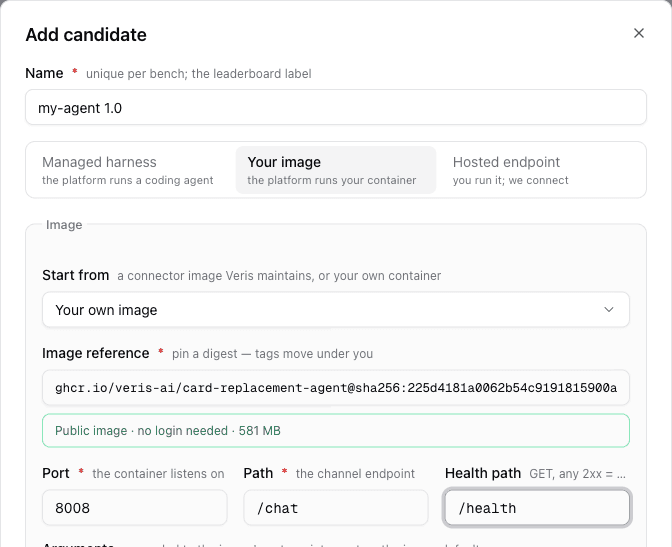
status | Meaning |
|---|---|
public | Pulls without a login. |
ok | Pulls with a login your workspace saved (step 5). |
needs_login | The registry wants a login and your workspace has none for it. |
denied | The saved login was refused, or can’t read this repository. |
not_found | No such tag or digest. |
unreachable, invalid, error | The registry didn’t answer, the reference is malformed, or the check failed. detail says which. |
5. Private registry: save a login
If your image is private, save a registry login once for your workspace. Every bench in the workspace pulls with it.
Console
Open Overview and choose Connect on the Registries card (Manage once you have one). Choose Add registry, pick the kind, fill the prefix, username and token, and choose Save registry.
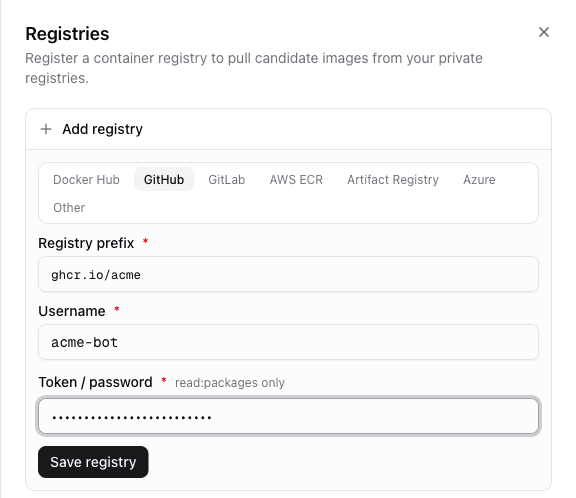
kindis one ofdockerhub,github,gitlab,azure,ecr,gar,other.prefixis the part of the image reference the login covers. A second login with the same prefix replaces the first.- For
github, use a classic personal access token with only theread:packagesscope. A token with more scopes is refused. - For
ecr,usernameis the access key id,secretthe secret access key, andregionis required. Forgar,secretis the service account key JSON andusernamecan be left out. - Veris signs in to the registry before saving. A login that doesn’t work is refused with the registry’s own error.
Then check the image again. The API’s check-image should say ok and name the login:
{"status": "ok", "detail": "pulls with the ghcr.io/<you> login", "registry_id": "regcred_...", "prefix": "ghcr.io/<you>", "digest": "sha256:...", ...}6. Keep secrets in the bench
Put API keys and other secrets in the bench’s candidate-env. Every candidate on the bench gets them, and neither the console nor the API shows a secret’s value again.
Console
Open the bench, go to Candidates, and choose Add variable under Candidate-env. Turn on Secret for keys.
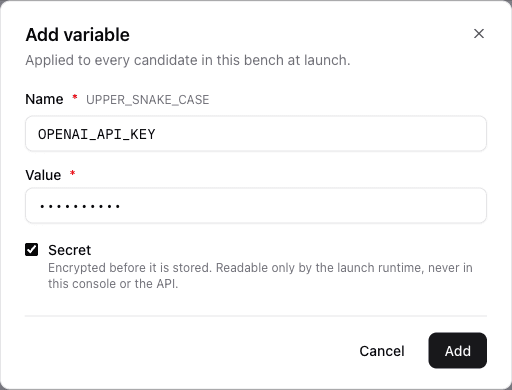
Plain settings for one candidate, such as MODEL or a feature flag, go in
image.env instead (step 7). Anyone who can read the bench can read image.env.
Names that start with VERIS_ are refused in both places. The candidate-env
also refuses names that Veris’s own agents use, such as MODEL and
SYSTEM_PROMPT; set those in image.env.
7. Register the candidate
Console
Open the bench, go to Candidates, and choose Add candidate, then Your image. Enter a name, the image reference (pinned by digest), the port, the path and the health path. The image check appears under the reference.
Under Channel, pick HTTP or WebSocket and, for HTTP, the field names your API uses. Leave a field empty for the default. Choose Add candidate.
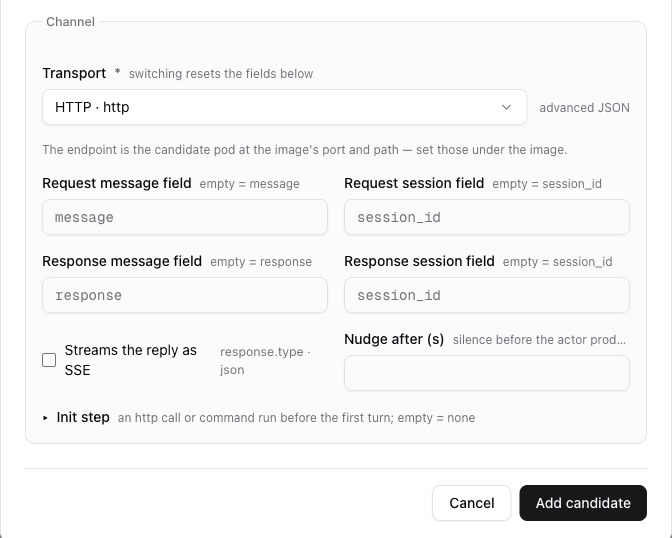
Plain settings for this candidate go under Variables; secrets go in the candidate-env (step 6).
8. Check that it works
Start a smoke trial with your candidate, as in Run a trial, and
wait for it. An attempt that completed doesn’t yet show that your agent works
on the bench: an agent whose every database call fails still completes. Check
each attempt:
| Check | What to look at | If it fails |
|---|---|---|
| It ran | status is completed | Read the end of error (Troubleshooting below). |
| Your agent answered | turns is 2 or more, and the transcript has its replies | Check image.path and the field mapping. |
| The grader sees your model calls | agent_trace_reason is null, and llm_calls is above 0 | See step 3. |
| Your agent used its tools | tool_calls is above 0, if it has tools | Read the tool results in agent_trace.json. |
| It reached the twins | reached is 1 for each twin your agent uses | Your agent still uses its own address: see step 2. |
This prints those for each attempt. llm_calls comes from the attempt’s
agent_trace.json; reached asks each twin’s ledger for a request from your
agent.
curl -s "$BENCH_API/trials/$TRIAL_ID/attempts?candidate_id=$CANDIDATE_ID&limit=50" \
  -H "Authorization: Bearer $VERIS_API_KEY" \
  | jq -r '.items[].id' | while read -r a; do
    att=$(curl -s "$BENCH_API/attempts/$a" -H "Authorization: Bearer $VERIS_API_KEY")
    llm=$(curl -s "$BENCH_API/attempts/$a/artifacts/agent_trace.json" \
      -H "Authorization: Bearer $VERIS_API_KEY" | jq '.llm_calls // 0' 2>/dev/null)
    twins=""
    for s in $(jq -r '.ledger_summary.sources[]? | select(.kind == "service") | .name' <<<"$att"); do
      n=$(curl -s "$BENCH_API/attempts/$a/ledger?plane=vendor&source=$s&limit=1" \
        -H "Authorization: Bearer $VERIS_API_KEY" | jq '.events | length')
      twins="$twins$s:$n "
    done
    jq -c --argjson llm "${llm:-0}" --arg twins "$twins" \
      '{id, status, turns, llm_calls: $llm, tool_calls, agent_trace_reason, reached: $twins, passed}' <<<"$att"
done{"id": "att_...", "status": "completed", "turns": 6, "llm_calls": 6, "tool_calls": 7, "agent_trace_reason": null, "reached": "postgres:1 ", "passed": true}agent_trace_reason is judge_disabled_trace when your bench’s grader is set
not to read traces; then skip that check.
Whether an attempt passed is about your agent, not about this setup. Two attempts say little; a full trial does.
Next: run a trial.
Troubleshooting
When an attempt fails, its error names the cause and ends with the last lines
your container logged. Read it in the console’s attempt view, or with
GET $BENCH_API/attempts/<attempt id>.
Each attempt also keeps artifacts. List them with
jq '.artifact_uris | keys' on the attempt, and read one with
GET $BENCH_API/attempts/<attempt id>/artifacts/<name>:
| Artifact | What it holds |
|---|---|
candidate.log | Your container’s stdout and stderr. |
transcript.jsonl | The conversation, one turn per line. |
agent_trace.json | The model calls the grader read, with tool calls and tool results. |
ledger.jsonl | Every request the twins received. |
Why an attempt didn’t pass is in its assertion_results: each check’s
statement, whether it passed, and the grader’s reasoning.
| What you see | Why | What to do |
|---|---|---|
The attempt fails within a minute with ErrImagePull or ImagePullBackOff. | The bench can’t pull the image: a wrong reference, a private image with no login, or a Docker Hub pull limit. | Run check-image (step 4). Save a login (step 5). Move off Docker Hub. |
| The attempt fails because the container exited before it was ready. | Your server crashed on start. | Read the log lines in the error. Run the image locally with the same variables. |
| The attempt fails after 600 seconds, naming the image and port. | Nothing answered on image.port or image.health_path. | Listen on 0.0.0.0 and the declared port. Check the health path returns 2xx. |
| The transcript shows empty or missing agent replies. | The path returns 404, or the reply field isn’t where the mapping looks. | Check image.path and the field mapping. Log each request. |
The attempt fails at once with exec format error, or the pull finds no matching manifest. | The image was built for arm64. | Build with --platform linux/amd64 (step 4). |
| Your agent says it can’t reach its systems, and the twin shows no requests. | It still uses its own address, such as localhost, or its client can’t connect. | Step 2. For Node and Postgres, add uselibpqcompat=true. |
llm_calls is 0, or agent_trace_reason is no_spans_received. | Veris recorded none of your model calls. | Step 3. For Node: openai 5 or later, and the run user owns the app directory. |
422 image ref must carry a tag or an @sha256 digest or image ref ':latest' is not a pin | A bare or :latest reference. | Use a digest. |
422 VERIS_* names are reserved for the platform | The name starts with VERIS_. | Rename the variable. |
403 read_only | You are a viewer; or the bench is a template; or it belongs to another workspace and is shared with yours for viewing only. | Viewer: ask your workspace owner for the member role. Template: fork it. Shared bench: it can’t be forked, so ask Veris for a copy in your workspace. |
| Your agent changes real data at a vendor. | On a direct bench, a vendor URL is written into the code. | Read the twin’s variable (step 2). |
| The attempt fails with the container killed for memory. | It used more than 8 GiB. | Use less memory. |
API error messages call both Your image and Managed harness candidates “managed”, because Veris runs them.
http field mapping
Set these on channel_config.channel when your API doesn’t use the default
shape.
| Field | Default | Meaning |
|---|---|---|
method | POST | HTTP method. |
headers | none | Extra request headers. |
request.message_field | message | Key that carries the user’s text. |
request.session_field | session_id | Key for the session id; null leaves it out. |
request.static_fields | none | Fixed keys added to every request. |
request.history | none | Sends the whole conversation in each request, for APIs that need it. |
response.type | json | json, or sse for a streamed reply. |
response.message_field | response | Key that holds the reply text. |
response.session_field | session_id | Key that holds the session id to send back. |
nudge_after | none | Seconds of silence before the simulated user prompts again. Raise it for agents with long tool calls. |
For example, an agent that replies {"answer": "...", "conversation": "..."}
needs "request": {"session_field": "conversation"} and
"response": {"message_field": "answer", "session_field": "conversation"}.